Sunday, 8 September 2013

CoPilot GPS – Plan & Explore for ANDROID MOBILE

Copilot GPS – Plan&explore

 CoPilot GPS is the powerful free offline mapping, route planning and local exploring app from the developers of award-winning CoPilot Live navigation. It’s the ideal travel companion app for over 250 Android smartphones and tablets including Sony Xperia Z, Samsung Galaxy SIII, Galaxy Note 2, HTC One and Droid DNA..


PLAN, EXPLORE & NAVIGATE
 

CoPilot GPS - Plan & explore-1
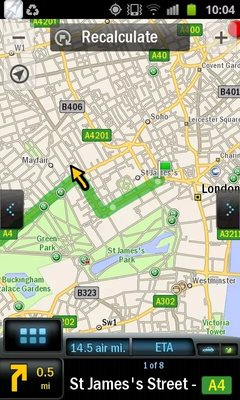
Find the best way to all the places you need to go without relying on your mobile connection. Detailed street maps of an entire country or region are stored on your Android smartphone or tablet, so you’ll still be able to calculate routes and get driving or walking directions when there’s no mobile network coverage. Millions of useful Points of Interest are built into the app, making it easy to locate nearby restaurants, hotels and more. You can also search for local businesses and attractions using Yelp, Google™ and Wikipedia.


KEY FEATURES:
. Premium quality 2D street maps stored on-board your Android device for offline use
. Millions of Points of Interest (POIs) built in
. Powerful route planning with a multi-stop trip optimizer
. Alternate Routes: up to 3 ways to your destination
. Drag and drop route editing
. Driving directions: manually scroll through the turns to your destination
. Walking mode: explore unfamiliar cities on foot with confidence
. Social sharing: let your friends know where you are with Twitter & Facebook status updates*
. Useful local content: discover interesting places and attractions nearby with Yelp, Wikipedia and Google*
. 14 days free use of full voice-guided 3D navigation and ActiveTraffic™. After 14 days you can continue to enjoy free and unlimited access to offline maps, POIs and route planning, or upgrade to unlimited turn-by-turn navigation.

http://www.appsapk.com/wp-content/uploads/2013/09/CoPilot-GPS-Plan-explore-2.jpg

IN-APP UPGRADE TO UNLIMITED VOICE-GUIDED NAVIGATION

You can upgrade to full CoPilot turn-by-turn navigation through in-app purchase for unlimited use of: voice guidance, 3D maps, speed limit warnings, safety camera alerts, lane indicator arrows and much much more.
AVAILABLE MAPS
- Download any one ONE of the following countries/regions for FREE: US + Canada, UK + Ireland, Balkans, BeNeLux, Russia, Central Eastern Europe, DACH (Germany, Austria, Switzerland), France, Greece, Iberia, Italy, Nordics, Poland, Romania, Turkey, Ukraine, Southern Africa (South Africa, Lesotho, Swaziland, Namibia and Botswana), Australia + New Zealand, Brasil, Middle East (Bahrain, Jordan, Kuwait, Lebanon, Oman, Qatar, Saudi Arabia and UAE).
- Travelling abroad? You can add extra countries and regions through in-app purchase
NOTES:
.* ActiveTraffic and social sharing incl/. Yelp, Google and Wikipedia require a mobile data connection

 Download

Friday, 12 April 2013

How To Use Android Phones As Webcam for PC [via USB and Wireless ]


Imagine that you have very important work and want to use Skype or MSN video calling but haven’t any webcam  some days ago I have the same situation , after that I googled and found a very fantastic way to make video calls without buying a webcam . yes friends we can use our android phone as a webcam for pc. I have Tried this Trick with my Samsung Galaxy Y and it works well with skype .


There are two ways to use android as webcam -
  1. Wireless Using internet
  2. Using USB
Note: we can also use tablets for it

( I ) Use your phone as a webcam via wireless

This is the more flexible and best way that i prefer  to use
Requirements :
  1. Internet connection both on pc and phone
  2. Download free application called IPwebcam from here via android market
Follow these Steps: 
  1. install ipwebcam
  2. you can configure following preference  as you required, I leave all things default
    • communications port
    • enable / disable sound
    • disable / enable the notifications
    • use android as pc wireless webcam
  3. After all thing is configures ,click on ‘start server’
  4. and it will turn your camera on , you will see in upper left corner of screen a button appeared called ‘How do I connect?’ 
  5. lick on that button  
button
  1. and you will receive a URL with the port 
    e.g. 192.168.1.3:8080
  2. All you have to do is open your browser and type this address and you will find a screen with various items and options:
You can view your Camera in Several Ways:
  • Open stream in media player, VLC Such as
  • Open remote control panel for use with third-party software and mediaplayers
  • Use Java browser plugin
  • Use JavaScript to update frames in the browser for IE, Playstation and Wii. Use, if your browser do not support natively MJPG
  • Use browser built-in viewer (not supported by all browsers)
  • Use tinyCam Monitor on another Android device
  • Connect to PC for use with Skype and other videochats on Windows
  • Take full-resolution photo with or without auto-focus (to put phone into silent mode to Prevent shutter sound)
  • Immediate download video frame
Third-party software support:
You can choose any option as your need and enjoy video calling, voice chatting with android webcam

(II) Use your phone as a webcam via USB

This process will also allow you to use your Android as a webcam, but you’ll have to connect the phone / tablet via USB cable! Here’s what to do:
  1. First make sure your phone is recognized when connected, this means that you have correctly installed the drivers of your Android phone e.g. when you install kies for samsung mobiles it install drivers on PC for your phone
  2. Download and install USB webcam on your smartphone
  3. Download and install the USB Webcam desktop client  [ download via MULTIUPLOAD ]
  4. Connect your phone to your computer using the USB cable and wait until the PC recognizes the device
  5. Now launch the USB Webcam desktop client. Please do not close the MS-DOS command prompt window that automatically opens
  6. Now start the app USB Webcam  from your phone
  7. we’re  almost done , now you can start the program you want to use with webcam (eg, Windows Live Messenger, Skype, etc..)
And do not forget to set GWebcamVideo as a webcam to use (usually in the settings of programs that support a webcam)

What is an XPS File and How to Open .XPS File extension?


Microsoft is known not only for Windows operating system but also for development of extensions which not many of the people are familiar with. Microsoft never tends to stop developing, releasing programs and extensions like DOCX file format, forcing people to download Microsoft 2007, or find a alternative way to open those files!

In this article, we will look at Microsoft extension, named XPS, and we’ll learn more about XPS extension, which is an alternative for PDF format.
 
What is XPS File Extension?

XPS is XML Paper Specification which is used in Windows Printing machine and doesn’t support non Microsoft platforms.
Now the problem is “How to open XPS files on your computer ?” If you are on the Windows Vista platform then there is no need to download any plugin or software to open XPS files, double click on the saved XPS file to view the content! This is because both the .NET framework and XPS file viewer is pre-installed on Windows Vista.

Convert XPS File to PDF Format.

If you are downloading any Windows  user Manual or Ebook guide then you will find files in XPS and PDF format. Though you can convert xps to pdf files and open them in your PDF viewer but another alternative to open & view XPS files are suggested here (For other platform such as Windows XP or Windows server 2003).


Ways to open XPS files :

There are a couple of easy-to-do ways to open and edit XML Paper Specification format files on your Windows-only machine. The way I’d recommend is to use addons which are freely available for both Windows and Mac OS X users.

So, if you want to open files ending with the .XPS extension, here are the most preferable way to do so:
  • Install Microsoft Office Additional Addin 
Microsoft office comes with an additional option to install the addin to deal with XPS and PDF file extension.Users having Office 2007 can use below link to download the addin.


After Downloading completes, install it and you will be able to open XPS file in Office itself..
  • Open XPS File in Firefox browser

If you are not using Internet explorer for some reason and want to open .XPS on Firefox then download this IE tab extension (might not work on Firefox latest versions).
Restart the Firefox browser, configure the settings and you are ready to open, read XPS format file without sweating bullets.
  • Viewing XPS Files on Windows XP
Microsoft provides free XPS reader which is 2.8mb and can be downloaded from here but make sure you have .NET framework installed on your PC! If not you will be asked to download the missing .Net framework.
  • Open XPS File in Internet Explorer
After opening Internet explorer, click on File, then Open and Choose your .XPS file. Note that you will be asked to open in a new tab to view the file. So, in simple words, yes, you can also set Internet Explorer as the default program to read XPS file!

Related Posts Plugin for WordPress, Blogger... TwitterFacebookGoogle PlusLinkedInRSS FeedEmail Delicious Digg Stumbleupon Favorites More

Share

TwitterFacebookGoogle PlusLinkedInRSS FeedEmail Delicious Digg Stumbleupon Favorites More